Language, dark mode and your profile
Use pdftek in 26 languages, switch to dark mode and keep your profile up to date.
- 1
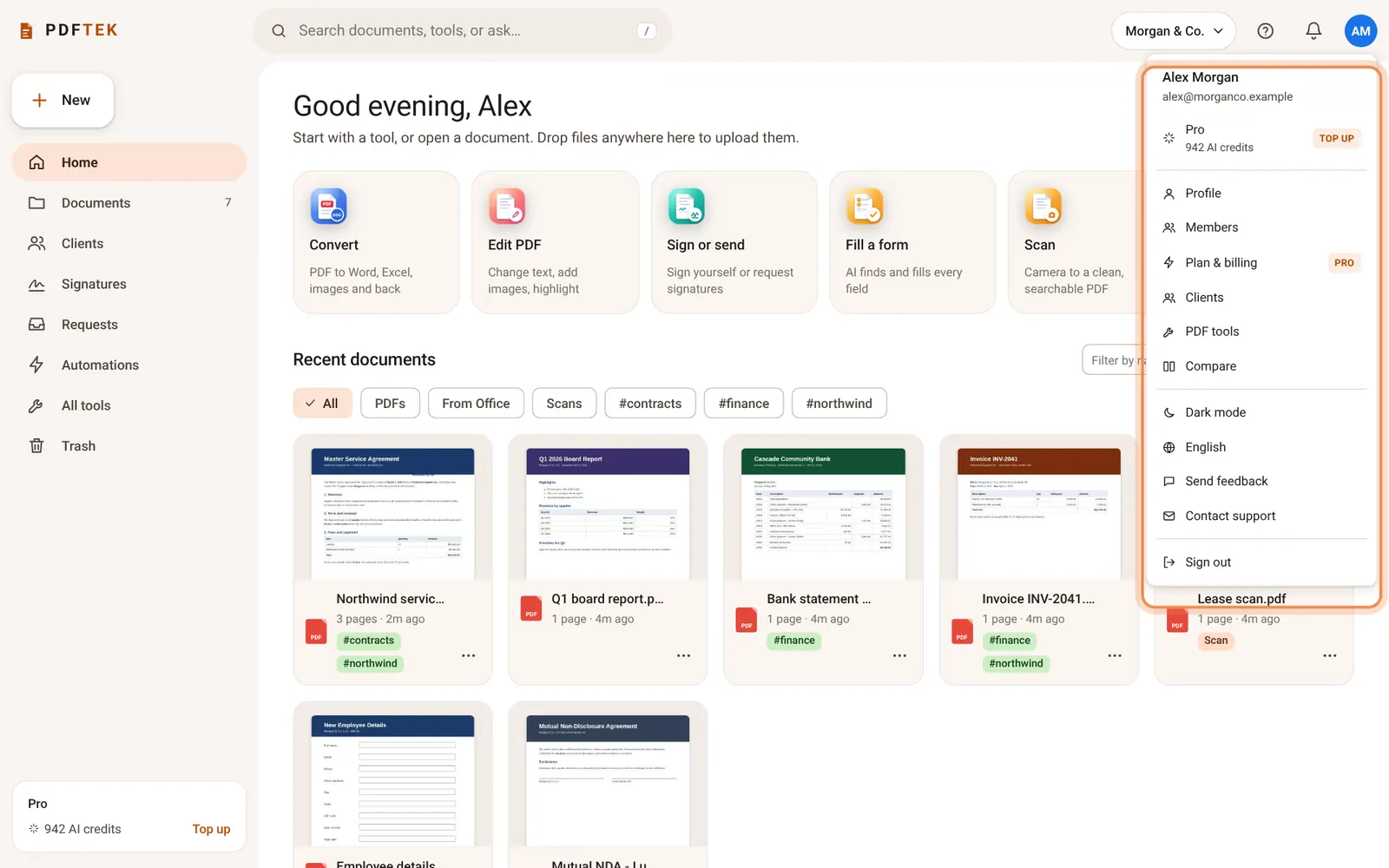
Account menu
Click your initials at the top right for Profile, Plan & billing, the language, Dark mode, feedback and Sign out.
- 2
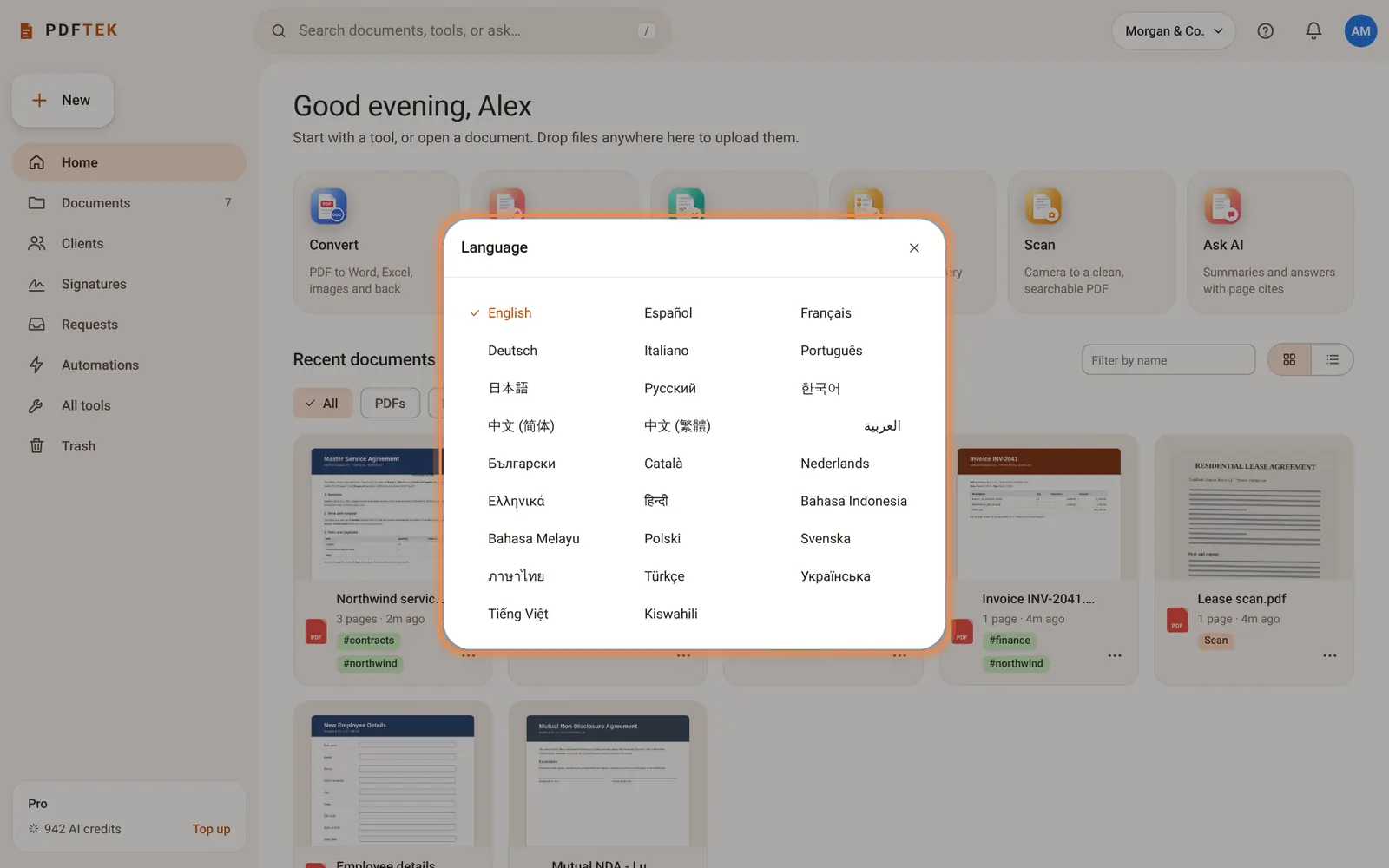
Change the language
Click the language name and pick from 26 languages. The whole site and app switch.
- 3
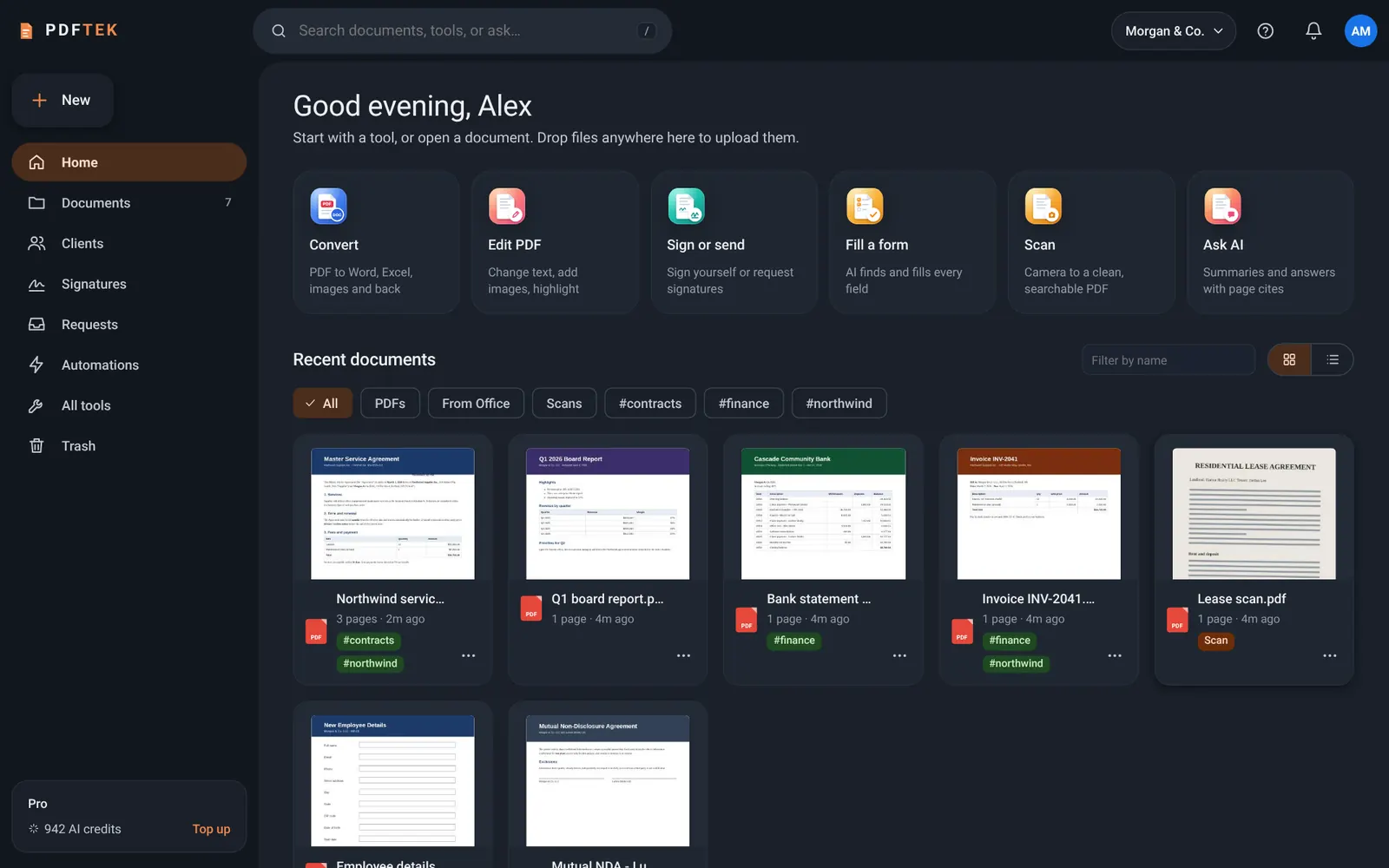
Dark mode
Choose Dark mode for a darker workbench; choose Light mode to switch back.
- 4
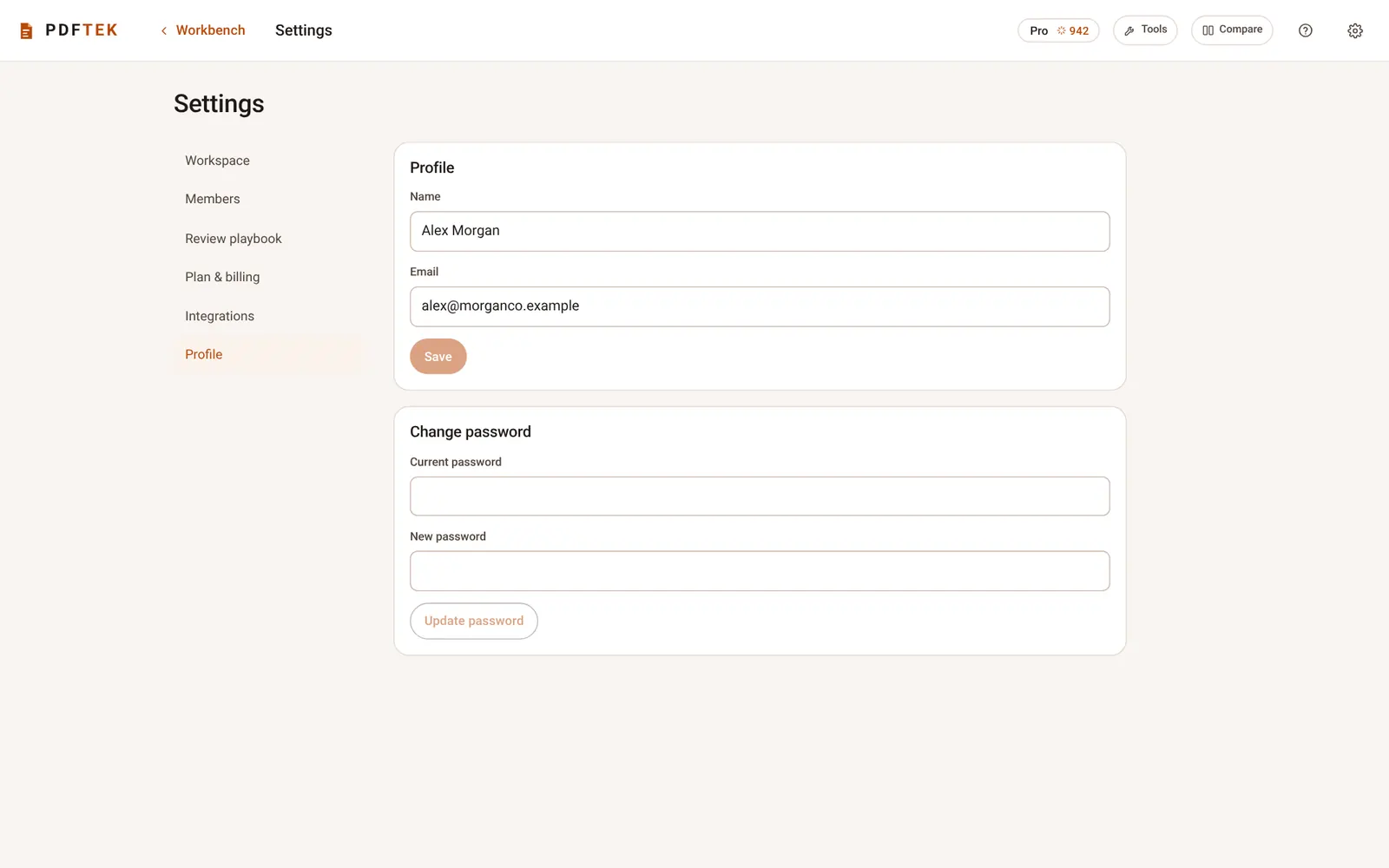
Your profile
In Settings, Profile, update your name and password.
Ready to try it?Open your workbench and follow along.
Start free