Compare two documents
See every change between two documents, or between two versions of one.
- 1
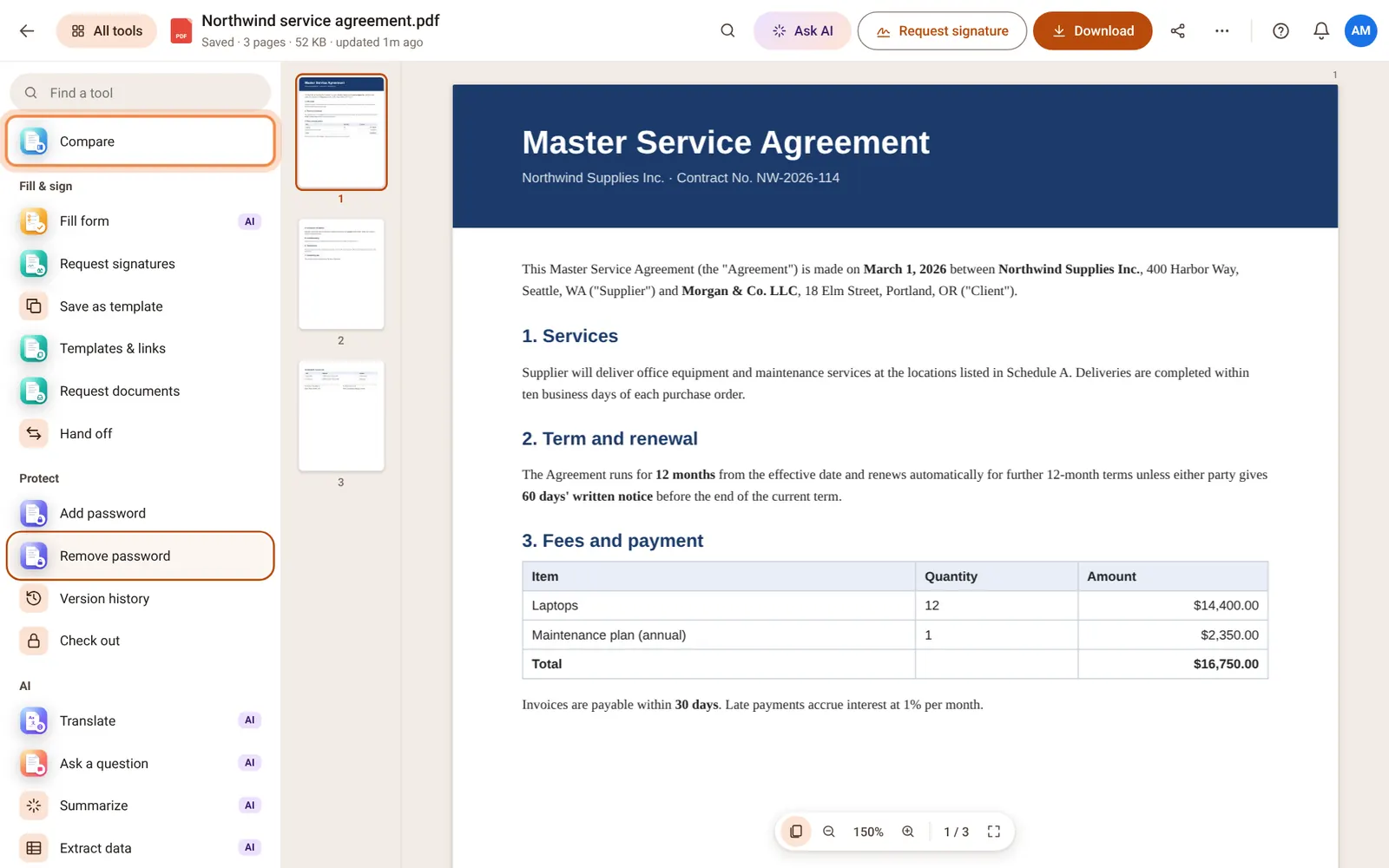
Open Compare
Click Compare under Organize in All tools, or Compare in your account menu.
- 2
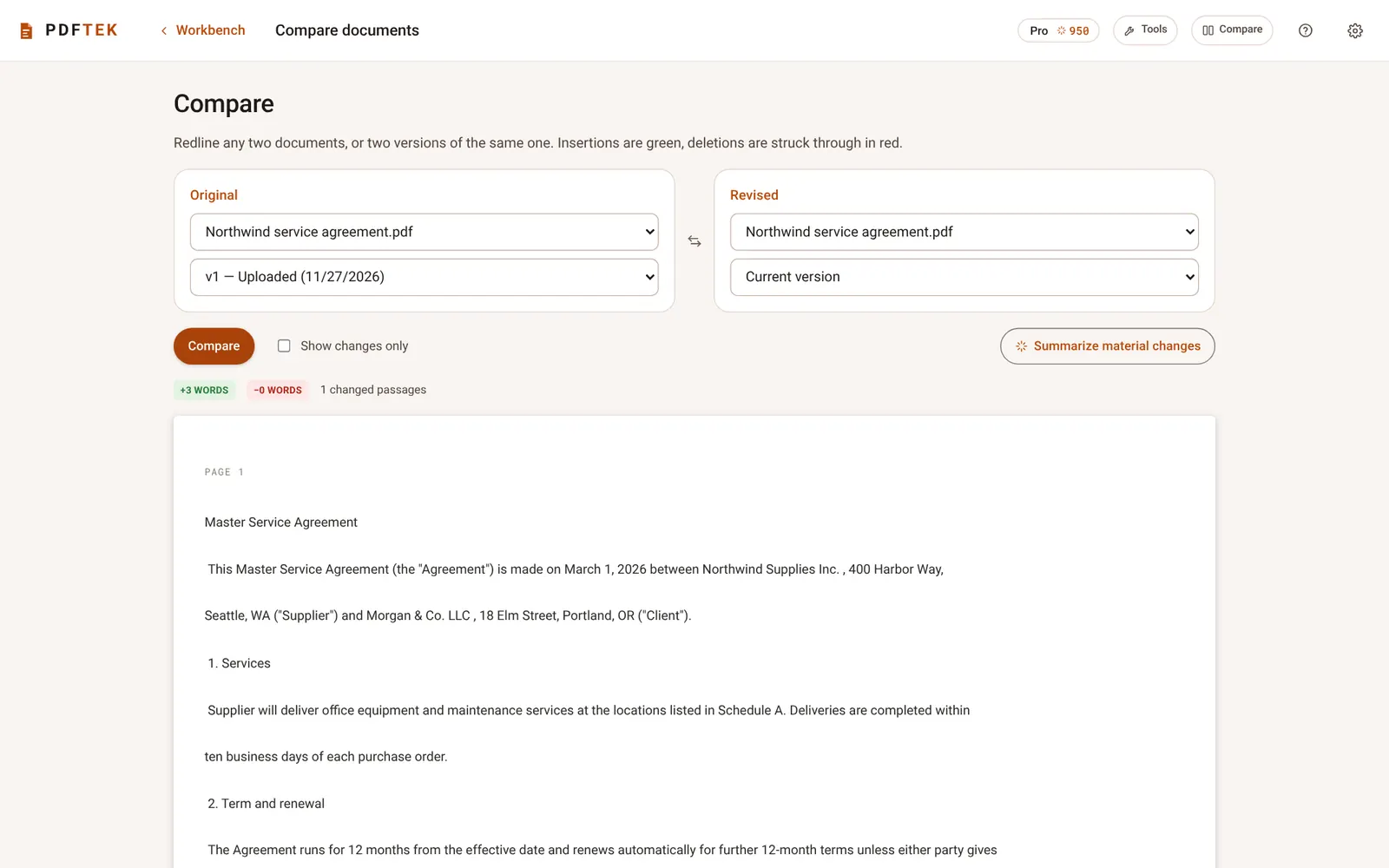
Pick the two documents
Choose the original and the new one. Additions and deletions are highlighted side by side.
- 3
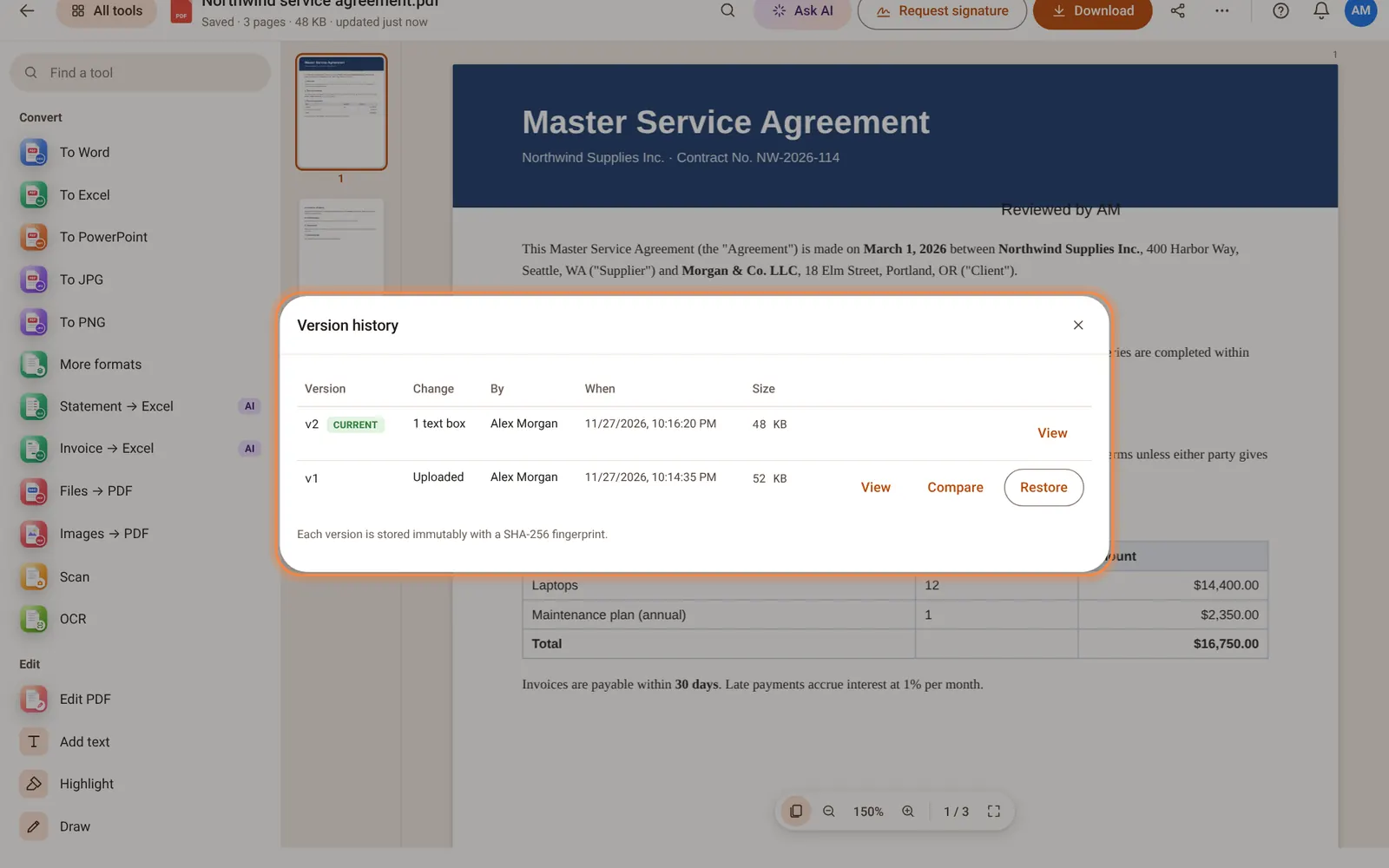
Compare versions
In Version history, click Compare next to an earlier version to see what changed.
Ready to try it?Open your workbench and follow along.
Start free