Edit text and images in a PDF
Change existing text, type anywhere, add images, highlight, draw and white out.
- 1
Start editing
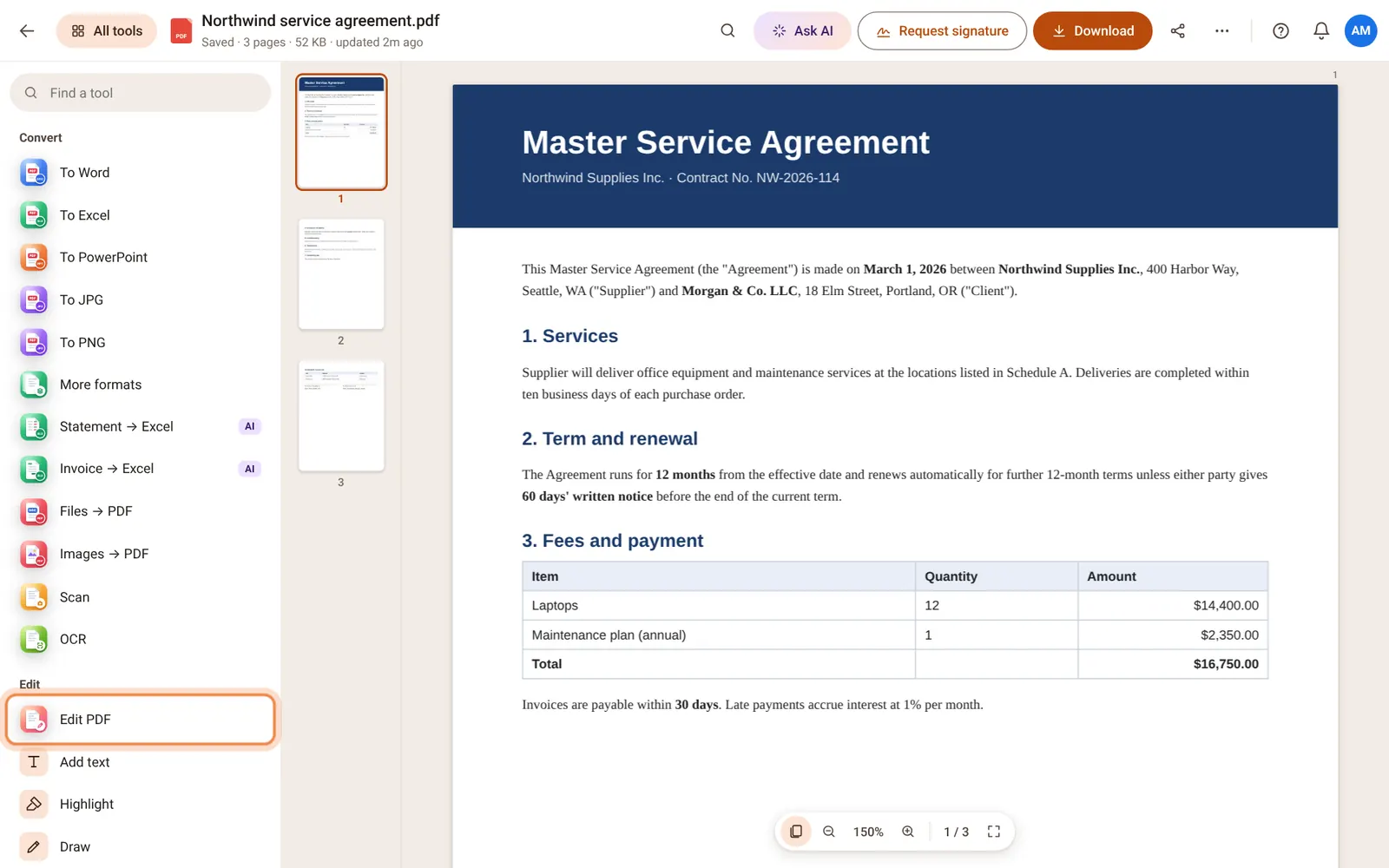
Open the document and click Edit PDF on Home or in All tools. You hold the edit lock while you work, so teammates don't overwrite you.
- 2
Change or add text
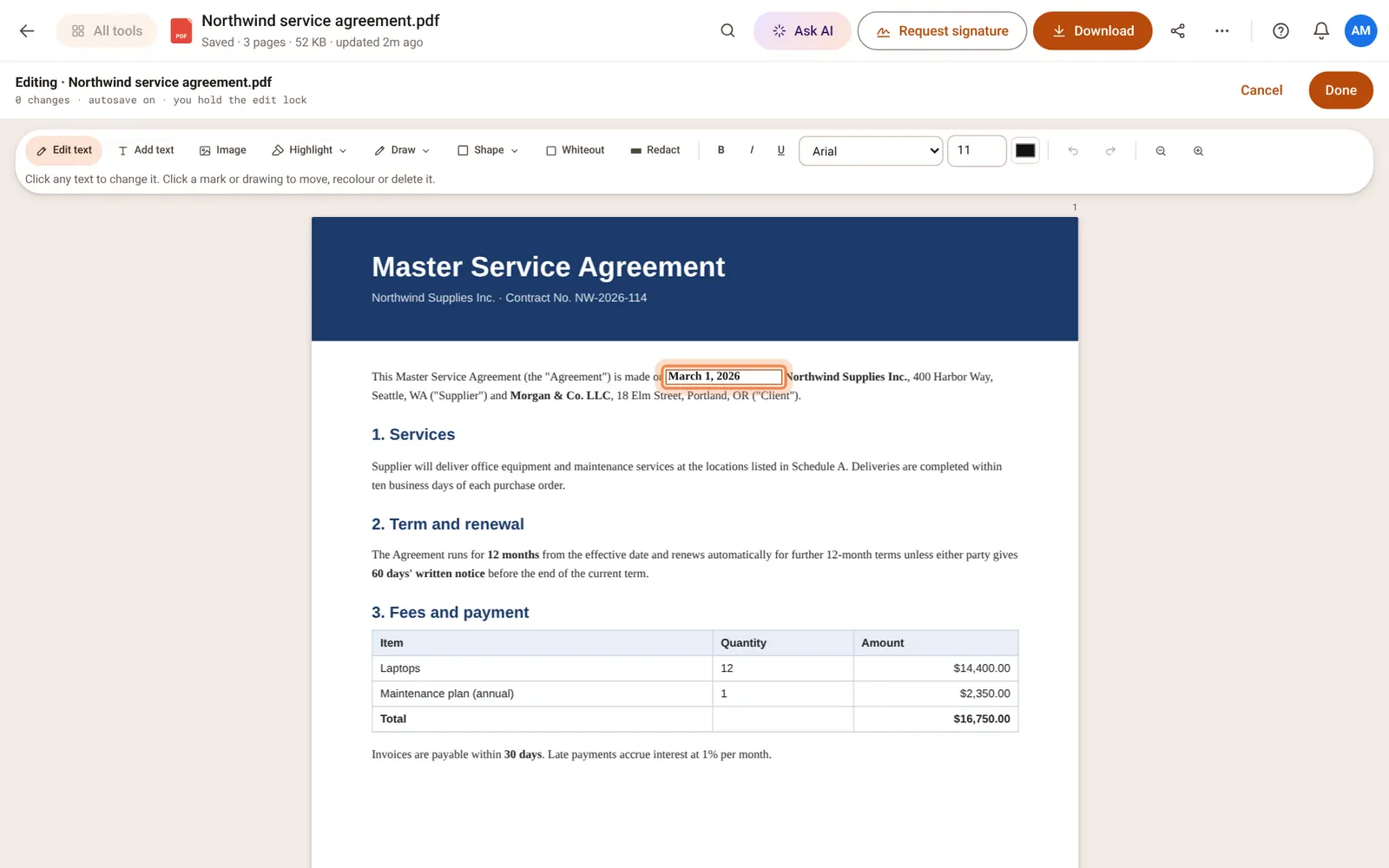
Click any text to change it in a matching font, or choose Add text and click where you want to type.
- 3
Images, highlights and drawings
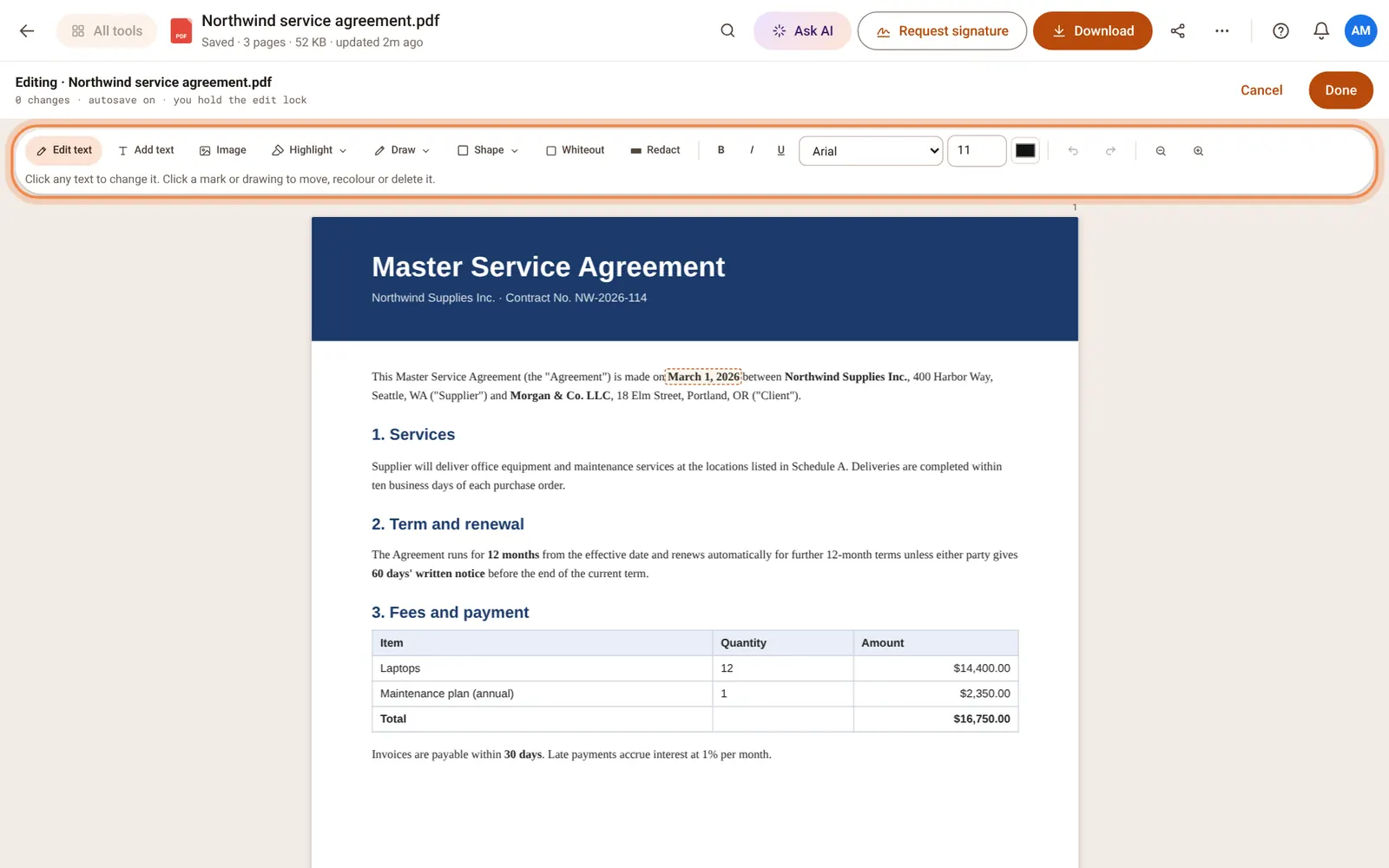
Use Image, Highlight, Draw, Shape and Whiteout in the toolbar above the page. Colour and thickness appear when a tool is selected.
- 4
Save a new version
Click Save version. Your edit becomes a new version, and the earlier one stays in Version history.
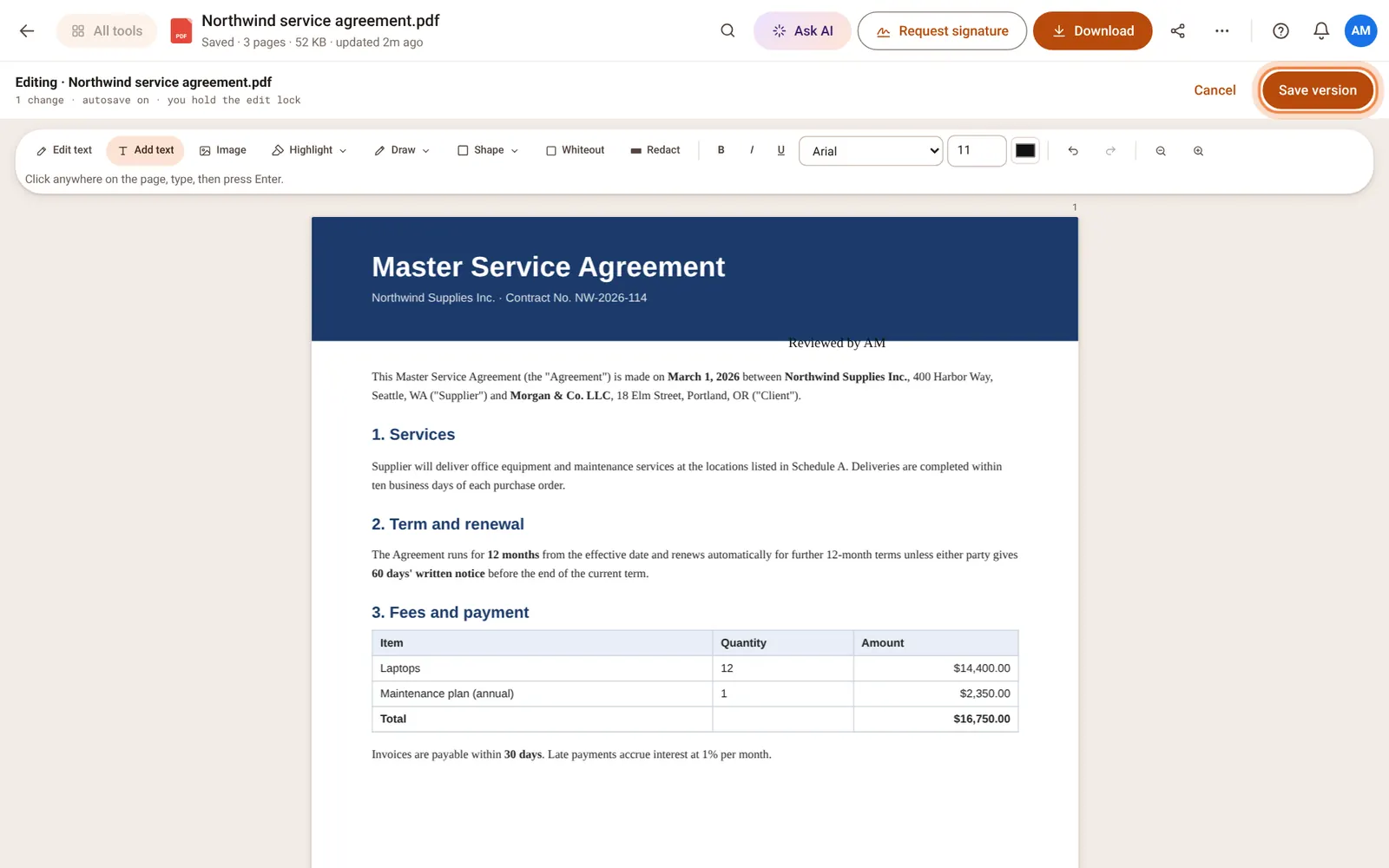
Your changes are autosaved as a draft while you work.
Ready to try it?Open your workbench and follow along.
Start free