Add or remove a password
Encrypt a PDF with a password and permissions, or unlock one you can open.
- 1
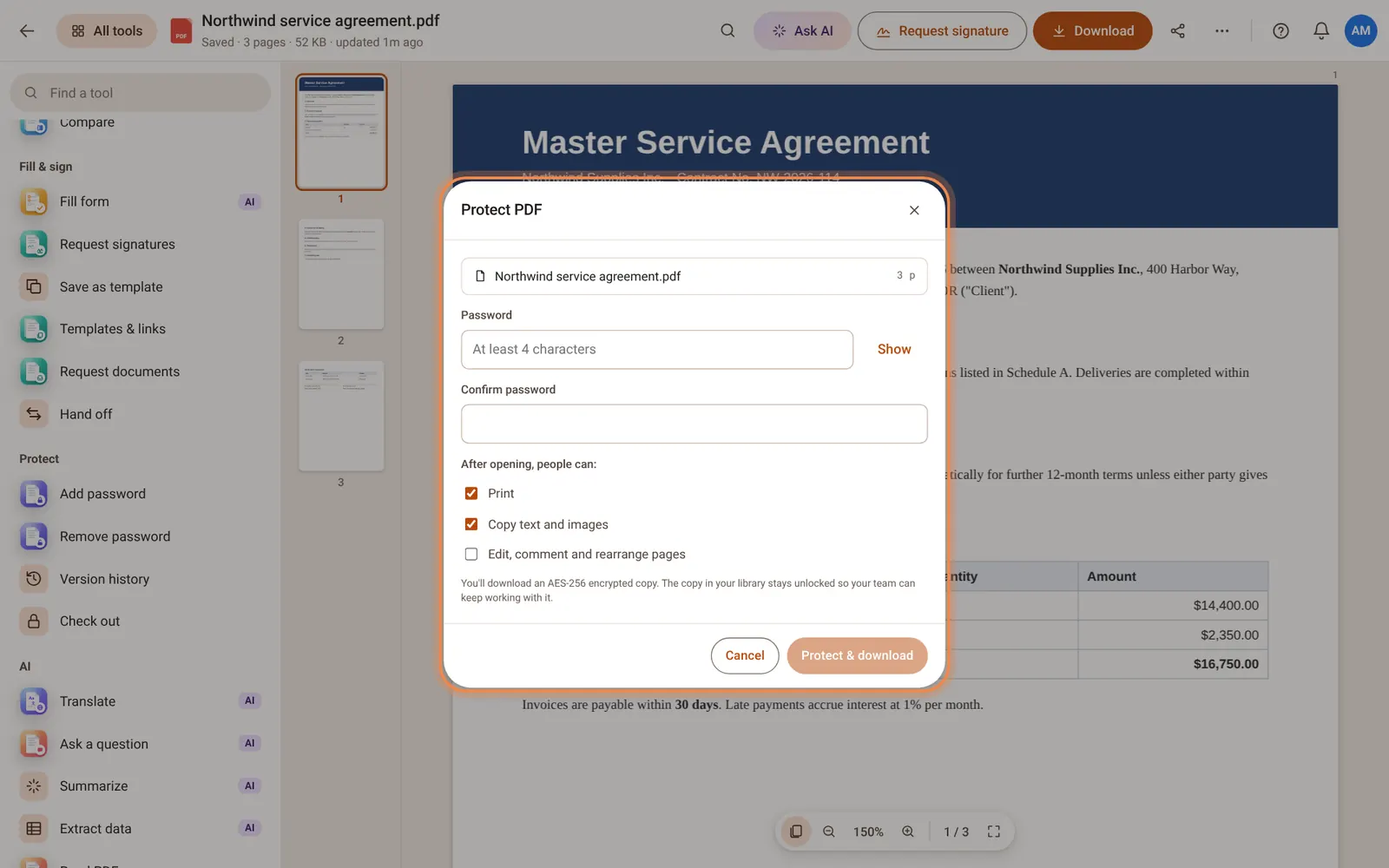
Add a password
Click Add password under Protect in All tools. Set a password, and choose whether people may print, copy or edit.
- 2
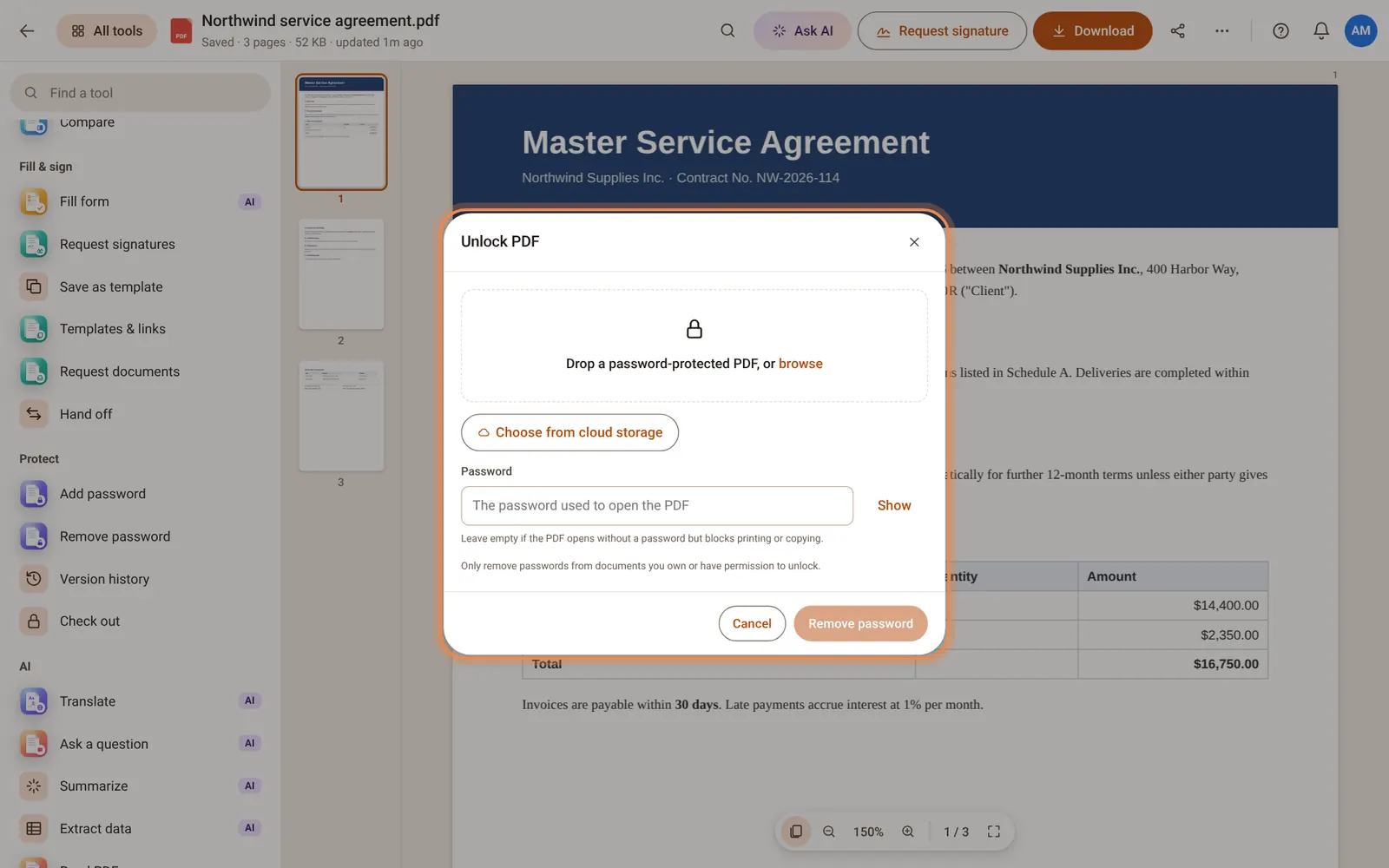
Remove a password
Click Remove password, upload the locked PDF and enter its password. An unlocked copy is added to your documents.
pdftek uses AES-256 encryption, the strongest PDF standard.
Ready to try it?Open your workbench and follow along.
Start free